Vim Editor
A vi-style cheatsheet for Rune's vim editor. The motion grammar,
operators, text objects, marks, registers, and macros are all here.
The : ex mode lives at the Command Prompt:
same prompt, broader scope.
Preset
Enable it in config.yaml:
- config.yaml
editor:
  mode: "vim"
Older configs say mode: "modal", which still selects the vim editor as a
deprecated alias.
Where modal editing applies
Setting mode: "vim" does more than turn your file buffers modal; the
same editor powers prompts and output surfaces throughout Rune, so the
motions, operators, and text objects on this page work everywhere:
- The console. Rune's console uses the modal editor as its prompt editor, so you can compose and edit command lines with full modal editing instead of a plain input line.
- The agent dialogue. In Rune Agent, the dialogue prompt becomes a modal editor, giving you the same editing grammar while you write messages.
- Terminals. Terminals gain a modal mode: enter it to edit the prompt line, and treat the whole terminal scrollback as a scrollable, navigable file under the modal editor.
- Task and command output. When a task finishes, or a
one-shot plugin command (
! command) completes, its output opens in a modal editor so you can scroll and navigate the results.
Remapping keys
Most of the motions, operators, and text objects on this page are built into
the editor itself, not Rune commands, so they cannot be rebound through the
command map. To swap the physical keys that trigger them, use the GUI's
gui.key_mapping property, which rewrites one key
combination into another before it reaches the editor.
Message bar appearance
The vim editor displays messages over the bottom row of the editor. Configure
its base attributes and layout under editor.vim.message_bar:
- config.yaml
- config.star
editor:
  vim:
    message_bar:
      attr: {fg: default, bg: gray}
      layout: '░▒▓█ {{ .Message | fg "white" }} '
config["editor"]["vim"]["message_bar"] = {
    "attr": attr(fg = "default", bg = "gray"),
    "layout": '░▒▓█ {{ .Message | fg "white" }} ',
}
layout is a Go template with exactly one .Message component. It supports
the bg, fg, bold, italic, underline, reverse, and dim styling
operators used by status-bar layouts. Styling on .Message overrides the base
attr values.
Search matches in the buffer use editor.vim.search_attr:
- config.yaml
- config.star
editor:
  vim:
    search_attr: {fg: grey, bg: yellow}
config["editor"]["vim"]["search_attr"] = attr(
    fg = "grey",
    bg = "yellow",
)
Older configs name this section editor.modal, from before the mode was
renamed. Both spellings still work, in YAML and in config.star; where a
config sets the same setting under both, editor.vim wins.
Windows and tabs
Vim layout management keybindings preset
When configuring Rune for the first time, we offer the ability to choose one of three
presets. If you choose the vim preset, Rune extends the editor's hjkl directions to
window management. Some keys differ between macOS and Linux; the keys below follow the
platform switch at the top of the page.
<meta> is Command on macOS. On Linux, first-run setup asks whether it should be
Super or Alt, and you can change it later with
gui.meta_key. With Alt, the editor still gets
its own Alt keys first.
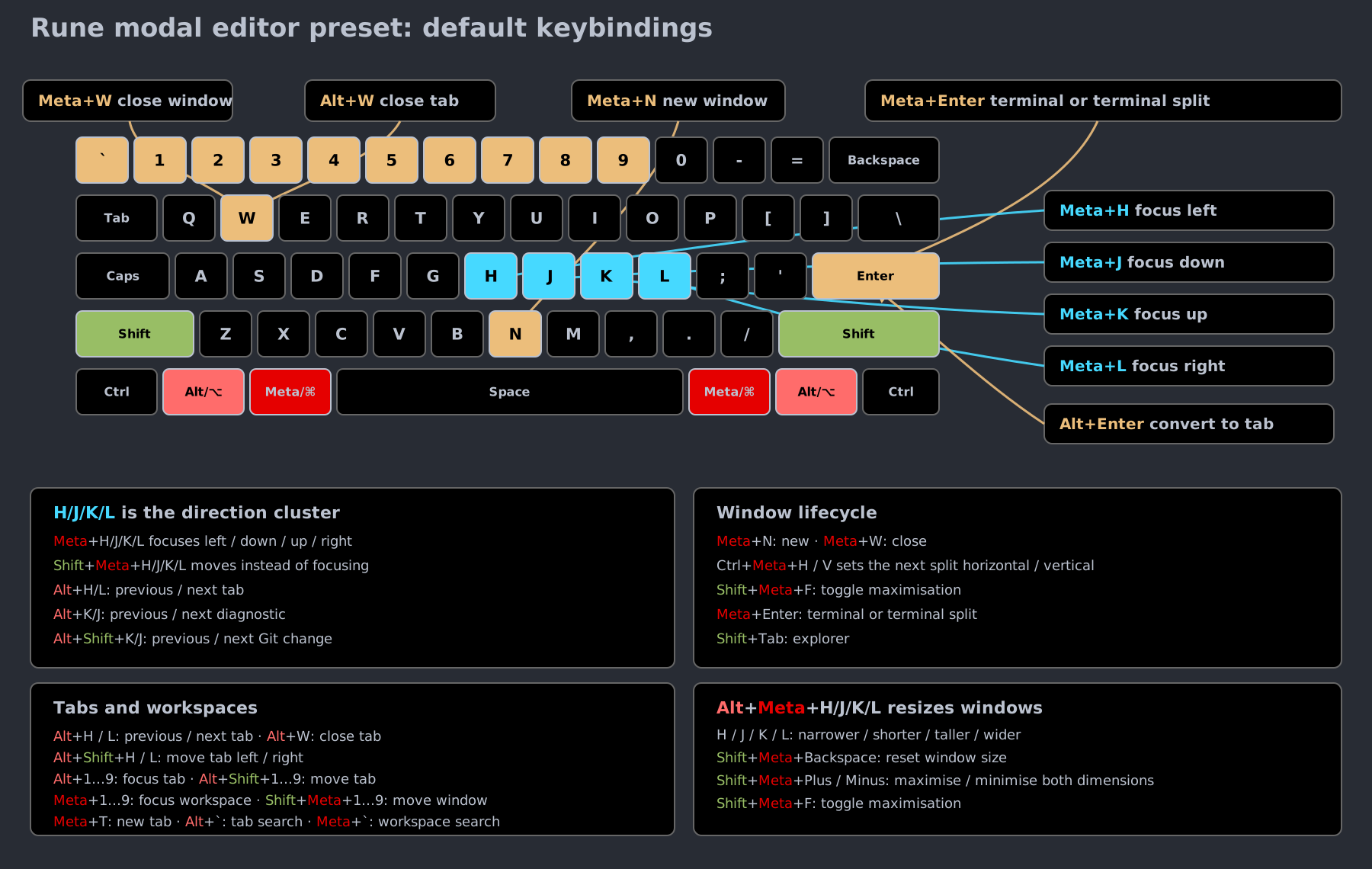
The tables below provide a copyable reference for the bindings shown in the diagram:
| Action | Left / down / up / right |
|---|---|
| Focus a window | <alt-j> / <alt-k> / <alt-i> / <alt-l> |
| Move a window | <alt-shift-j> / <alt-shift-k> / <alt-shift-i> / <alt-shift-l> |
| Resize a window | <alt-meta-j> / <alt-meta-k> / <alt-meta-i> / <alt-meta-l> |
The resize directions are narrower, shorter, taller, and wider.
<shift-meta-backspace> resets a window to its default size, and
<shift-meta-+> /
<shift-meta--> maximise
or minimise it in both dimensions.
Common window actions:
| Action | Key |
|---|---|
| New window | <alt-n> |
| Split horizontally / vertically | <alt-h> / <alt-v> |
| Maximise the focused window | <alt-m> |
| Open a terminal in place or in a new split | <alt-enter>, <meta-enter> |
| Close the focused window / the others | <alt-q> / <alt-shift-q> |
Prefill windowconverttab in the command prompt | <alt-shift-enter> |
Tabs step back and forth with one pair of keys. Add <shift> to reorder the
current tab:
| Action | Key |
|---|---|
| New / close tab | <meta-t> / <meta-w>, <alt-w> |
| Previous / next tab | <alt-[> / <alt-]> |
| Move tab left / right | <alt-shift-[> / <alt-shift-]> |
| Focus tab 1…9 | <alt-1> … <alt-9> |
| Move the current tab to slot 1…9 | <alt-shift-1> … <alt-shift-9> |
| Search open tabs | <alt-`> |
Another pair steps through diagnostics. Add <shift> to step through Git
changes instead:
| Action | Key |
|---|---|
| Previous / next diagnostic | <ctrl-meta-j> / <ctrl-meta-l> |
| Previous / next Git change | <ctrl-meta-i> / <ctrl-meta-k> |
Workspaces stay on <meta>, with <shift> moving instead of focusing:
| Action | Key |
|---|---|
| Focus workspace 1…9 | <meta-1> … <meta-9> |
| Move the focused window to workspace 1…9 | <shift-meta-1> … <shift-meta-9> |
| Search workspaces | <meta-`> |
| Toggle the file explorer | <shift-meta-e> |
See Layout Management for the complete layout system.
Code intelligence
Code intelligence lives on the
<alt>
layer, one letter per action. Adding <shift> prompts for a symbol name instead
of acting on the symbol under the cursor.
| Action | Under the cursor | By name |
|---|---|---|
lsp definition | <alt-d> | <alt-shift-d> |
lsp references | <alt-r> | <alt-shift-r> |
lsp implementation | <alt-p> | <alt-shift-p> |
lsp hover | <alt-t> | <alt-shift-t> |
The remaining language commands do not take a symbol argument:
| Action | Key |
|---|---|
lsp format (file, or selection) | <alt-b> |
lsp diagnostics (whole file) | <alt-e> |
lsp complete | <ctrl-space> |
lsp rename | not bound by selected preset |
| Step back / forward through cursor history | <alt-,> / <alt-.> |
<alt-f>,
<alt-x>, and
<alt-s>
jump to a function, variable, or type within the current file by name, without a language server.
Modes
| Mode | Enter | Exit |
|---|---|---|
| Normal | default; <esc> from any other mode | |
| Insert | i I a A o O s S c{motion} R | <esc> or <c-c> |
| Visual (char) | v | <esc>, v, operator |
| Visual (line) | V | <esc>, V, operator |
| Visual (block) | <c-v> | <esc>, <c-v>, operator |
| Replace | R | <esc> |
| Replace one | r | after one keystroke |
| Operator-pending | d c y > < = gu gU g~ gc gq gw | after motion / text object |
g submode | g | one keystroke |
z submode | z | one keystroke (h/j/k/l keep z armed) |
| Search | / ? | <enter> (run), <esc> (cancel) |
Counts
Most motions and operators accept a count prefix.
| Form | Meaning |
|---|---|
3w | three words forward |
5j | down five lines |
2dw | delete two words |
2d3w | delete six words (counts multiply) |
5G | jump to line 5 |
5gg | jump to line 5 |
A leading 0 is the start-of-line motion, not part of a count.
Cursor motions
Character / line
| Key | Motion |
|---|---|
h | one column left |
l | one column right |
j | one buffer line down (same column) |
k | one buffer line up (same column) |
0 | cursor to column 0 of current line |
^ | cursor to first non-blank character of current line |
$ | cursor to last character of current line |
g_ | cursor to last non-blank character of current line |
+ - | first non-blank of the next / previous line; {n}+ {n}- move n lines |
_ | first non-blank of the current line; {n}_ of the line n-1 lines down |
H | cursor to top of viewport; {n}H to row n from top |
M | cursor to middle line of viewport, or of the text when it ends above the bottom |
L | cursor to bottom of viewport; {n}L to row n from bottom |
gj | one display line down (next wrapped row, same screen column); j without wrapping |
gk | one display line up (previous wrapped row, same screen column); k without wrapping |
Word
| Key | Motion |
|---|---|
w W | next word / WORD start |
e E | end of word / WORD |
b B | previous word / WORD start |
ge gE | previous end of word / WORD |
WORD (capital) is whitespace-delimited; word is also broken by
punctuation.
Find char on line
| Key | Motion |
|---|---|
f{c} | next c on line |
F{c} | previous c on line |
t{c} | up to (before) next c |
T{c} | up to (after) previous c |
; | repeat last f/F/t/T |
, | repeat reversed |
File / paragraph / brace
| Key | Motion |
|---|---|
gg | first line |
G | last line, or {n}G to line n |
{ } | previous / next paragraph |
% | matching () [] {} <> |
Search
| Key | Motion |
|---|---|
/pat | forward search |
?pat | backward search |
n | next match (search direction) |
N | previous match |
* | search word under cursor forward |
# | search word under cursor backward |
The last pattern is stored in register /.
Jumps
| Key | Motion |
|---|---|
g; | older change |
g, | newer change |
`{a-z} | jump to mark exact |
'{a-z} | jump to mark line |
'. `. | jump to last change |
'< `> | last visual selection start / end |
Scrolling
| Key | Action |
|---|---|
<c-e> | scroll one line down |
<c-y> | scroll one line up |
<c-d> | half page down |
<c-u> | half page up |
<c-f> | page forward |
<c-b> | page backward |
zz z. | center current line |
zt | current line to top |
zb | current line to bottom |
zH zL | scroll half-width left / right |
Insert
| Key | Enters insert at … |
|---|---|
i | cursor |
I | first non-blank |
a | after cursor |
A | end of line |
o | new line below |
O | new line above |
s | delete char, then insert |
S | delete line, then insert |
c{motion} | delete motion, then insert |
C | delete to EOL, then insert |
Inside insert mode:
| Key | Action |
|---|---|
<esc> <c-c> | back to normal |
<c-h> | backspace |
<c-w> | backspace word |
<c-j> | newline |
<c-t> | indent line one level |
<c-d> | outdent line one level |
<c-n> <c-p> | next / previous buffer-word completion |
<c-r>{reg} | insert register contents |
<c-o> | run one normal-mode command, then return |
<tab> | indent / accept completion |
<enter> | newline (autopair-aware) |
<up> <down> <left> <right> | move cursor |
Completion popup
When <c-n> / <c-p> opens the popup:
| Key | Action |
|---|---|
<up> <c-k> | previous candidate |
<down> <c-j> | next candidate |
<enter> <tab> | accept |
<esc> | cancel |
Candidates are words already present in the buffer.
Replace
| Key | Action |
|---|---|
r{c} | replace one char with c |
R | overwrite from cursor until <esc> |
~ | toggle case under cursor (normal mode) |
In visual-block mode, r{c} fills the whole block with c.
Edits (normal mode)
| Key | Action |
|---|---|
x | delete char under cursor |
X | delete char before cursor |
J | join line below with space |
gJ | join line below without space |
p | paste after cursor |
P | paste before cursor |
gp gP | paste; cursor ends after the pasted text |
u | undo |
<c-r> | redo |
. | repeat last change |
Operators
An operator + motion (or text object) applies the operator to the covered range. Doubling the operator applies it linewise to the current line.
| Operator | Effect | Linewise form |
|---|---|---|
d | delete | dd |
c | change (delete + insert) | cc |
y | yank (copy) | yy |
> | shift right | >> |
< | shift left | << |
= | reindent | == |
gu | lowercase | guu |
gU | uppercase | gUU |
g~ | toggle case | g~~ |
gc | toggle line comment | gcc |
gq | wrap paragraph at ruler | gqq |
gw | wrap paragraph, keep cursor | gww |
D | d$ | |
C | c$ | |
Y | yank line (= yy) |
Operators also accept /{pat}, ?{pat}, '{mark}, `{mark} as
motions.
As in Vim, an operator covers the text a motion moves over by the motion's
kind (:h exclusive, :h linewise). Line motions such as j, gg, G,
+ and H cover whole lines, including when they land on the cursor's own
line, so dG on the last line deletes it. A yank leaves the cursor at the
start of what it copied, so yk and yb move the cursor back. Case changes
and shifts never write to a register.
Text objects
After an operator (or in visual), i is "inner" (excludes delimiter),
a is "around" (includes delimiter).
| Object | Key |
|---|---|
| word | w |
| WORD | W |
| sentence | s |
| paragraph | p |
| quoted | " ' ` |
| parens | ( ) b |
| braces | { } B |
| brackets | [ ] |
| angles | < > t |
Examples: ciw change inner word, da" delete around quoted string,
yi( yank inside parens, vap visually select around paragraph.
Visual mode
Enter with v (char), V (line), <c-v> (block).
| Key | Action |
|---|---|
o | swap selection ends |
O | swap corner (block) |
y d x c s | apply operator, exit visual |
> < = | shift / reindent, exit visual |
u | lowercase selection |
U | uppercase selection |
~ | toggle case |
p P | replace selection with register contents |
gc gq gw | comment / wrap selection |
<esc> <c-c> | exit (records `< / `>) |
Visual-block extras:
| Key | Action |
|---|---|
I | block insert (prepend on every row) |
A | block append (append on every row) |
r{c} | fill block with c |
Marks
| Key | Action |
|---|---|
m{a-z} | set mark |
m{A-Z} | set global mark |
`{x} | jump to mark (exact column) |
'{x} | jump to mark (line, first non-blank) |
`. '. | last change |
`< `> '< '> | last visual start / end |
Registers
"{reg} before an operator selects the register.
| Register | Contents |
|---|---|
" | unnamed (last yank / delete) |
0 | last yank |
+ | system clipboard |
_ | black hole (discard) |
/ | last search pattern |
. | last inserted text |
- | last small delete |
a-z | named (overwrite) |
A-Z | named (append) |
Examples: "ayy yank line into a, "+p paste from clipboard,
"_dd delete line without saving it.
Macros
A macro is a recorded sequence of keystrokes you can replay on demand. Record once, then repeat an edit across many places without rebuilding the key sequence each time.
| Key | Action |
|---|---|
q{reg} | start recording into register {reg} |
q | stop recording |
@{reg} | play register {reg} |
@@ | replay the last played register |
{n}@{reg} | play register {reg} n times |
{n}@@ | replay the last played register n times |
Recording
In normal mode, press q followed by a register name (a-z) to start
recording. Every key you press is captured into that register until you
press q again to stop. The q keys that start and stop the recording
are not themselves captured.
For example, to record a macro into register a that surrounds the word
under the cursor in parentheses:
qa: start recording into registera.ciw(<ctrl-r>"): change the inner word, type(, paste the deleted word back from the unnamed register with<ctrl-r>", then type).<esc>: leave insert mode.q: stop recording.
Recording into an uppercase register name (A-Z) appends to the
macro already stored in the matching lowercase register instead of
overwriting it, so you can extend a macro after the fact.
Playing back
Press @ followed by the register name to replay it: @a runs the keys
stored in register a. @@ replays whichever register you played most
recently, so after a single @a you can keep pressing @@ to repeat
it.
Prefix a count to repeat the playback: 5@a plays register a five
times, and 3@@ repeats the last register three times. Combined with a
motion-aware macro, this is the fastest way to apply the same edit down
a column of lines: record the edit and a j to step to the next line,
then run @a with a large count.
Macros are registers
A macro lives in the same register as any yanked or deleted text, so the
two share storage. You can yank a hand-written key sequence into a
register with "ayy and then play it as a macro with @a, or inspect a
recorded macro by pasting the register's contents into a buffer with
"ap.
Because they are plain registers, recorded macros are also available to
the echo command's {register} instruction,
which lets you bind a recorded macro to a key or wrap it in an alias for
the Command Prompt.
g submode reference
| Sequence | Action |
|---|---|
gg | first line (or {n}gg) |
ge gE | previous end of word / WORD |
gj gk | display down / up |
g_ | end of line, last non-blank |
gJ | join without space |
gp gP | paste, cursor after text |
gu{motion} | lowercase |
gU{motion} | uppercase |
g~{motion} | toggle case |
gc{motion} | toggle line comment |
gq{motion} | wrap at ruler |
gw{motion} | wrap, keep cursor |
g; g, | older / newer change |
z mode
z mode is Rune's own thing. In Vim, z is a one-shot prefix for
scrolling and folds. Rune keeps those commands, but also turns z
into a small structural-selection mode driven by a live-highlighted
z-range.
The z-range
The moment you press z, Rune highlights a range around the cursor:
- If the cursor sits inside a fold (function body, block, JSON object, …), the range is seeded to that whole fold.
- Otherwise the range is empty and starts at the cursor.
From there you grow or shrink it interactively. z stays armed across
h/j/k/l so resizing feels continuous, no need to re-press
z between adjustments. Press any other key to leave z mode, or
promote the range to a visual selection.
| Key | Action |
|---|---|
zh zk | grow the z-range outward (stays in z) |
zl zj | shrink the z-range inward (stays in z) |
zv zV | promote the z-range to a visual selection |
Once you press v or V, you're in normal visual mode with the
z-range as the selection; apply any operator (d, c, y, >,
gc, …) the usual way.
The grow / shrink semantics are syntactic, not line-based: in code,
zh walks out to the enclosing scope, the enclosing function, the
enclosing class, then the file. zl walks back in.
Scroll positioning
| Sequence | Action |
|---|---|
zz z. | center the current line in the viewport |
zt | scroll current line to the top |
zb | scroll current line to the bottom |
zH zL | scroll left / right by half a viewport width |
z. additionally moves the cursor to the first non-blank.
Folds
| Sequence | Action |
|---|---|
zo | open fold under cursor |
zc | close fold under cursor |
za | toggle fold under cursor |
zO zR | open all folds |
zC zM | close all folds |
zA | toggle all folds |
What's different from Vim
- The z-range and its live highlight do not exist in Vim;
zh/zlin Vim scroll the viewport horizontally one column at a time. Rune binds horizontal scroll tozH/zL(half-width jumps) and reuses lower-casezh/zlfor structural-range grow / shrink. zv/zVin Vim only unfold around the cursor. In Rune they promote the current z-range to a visual selection.zRandzOboth open all folds;zMandzCboth close all folds. Rune does not distinguish recursive vs non-recursive.
Command Prompt
There is no built-in : ex mode. Rune's command prompt handles the
equivalent; see the Command Prompt guide. The
command prompt opens with : under the vim bootstrap default.
What's not here
Rune's modal editor implements the motion / operator / text-object / register / macro / mark grammar above. It is not a Vim clone, so the following Vim features are intentionally not present:
- A
:ex command mode (Rune commands run through the Command Prompt instead). Qex-replay mode.:s/old/new/substitute syntax (use a Rune command).- Vimscript or
~/.vimrc-style runtime config (Rune uses Starlark and YAML). - Window/buffer commands like
:split,:bnext: those are Rune commands.
If you find a vi binding you expected and it isn't on this page, it probably isn't implemented; please open an issue with the keystroke and the buffer state where you expected it to work.